Zid WhatsApp Integration | Complete Setup Guide
Connect your Zid store to WhatsApp in minutes. Automatic notifications for orders, shipping, and abandoned cart recovery.
Zid WhatsApp Integration: The Complete Setup Guide
If you run a store on Zid and want to reach customers through Saudi Arabia's most powerful communication channel, integrating WhatsApp is the smartest decision you can make. Thousands of stores use the Zid platform in Saudi Arabia, but only a small fraction leverage WhatsApp professionally. This guide walks you through the complete integration process.
Why Connect Zid with WhatsApp?
Before diving into the technical steps, consider these numbers:
- Order notifications: Customers receiving WhatsApp order confirmations return to purchase significantly more often than those receiving only email
- abandoned cart recovery: WhatsApp abandoned cart messages recover a much higher portion of orders compared to email
- Customer service: Handling post-sale inquiries via WhatsApp significantly reduces open tickets
- Repeat purchases: Customers who interact with you via WhatsApp buy at a notably higher rate annually
Prerequisites
- An active Zid account (any plan)
- WhatsApp Business API account (via WhatsLoop or any official provider)
- A dedicated WhatsApp number for your store (not used personally)
Step 1: Create Your WhatsLoop Account and Connect Your Number
- Sign up for WhatsLoop and select the appropriate plan
- Add your store's WhatsApp number
- Scan the QR code to connect the number
- Activate the basic bot, welcome message and auto-reply outside working hours
The connection takes less than 5 minutes and requires no technical expertise.
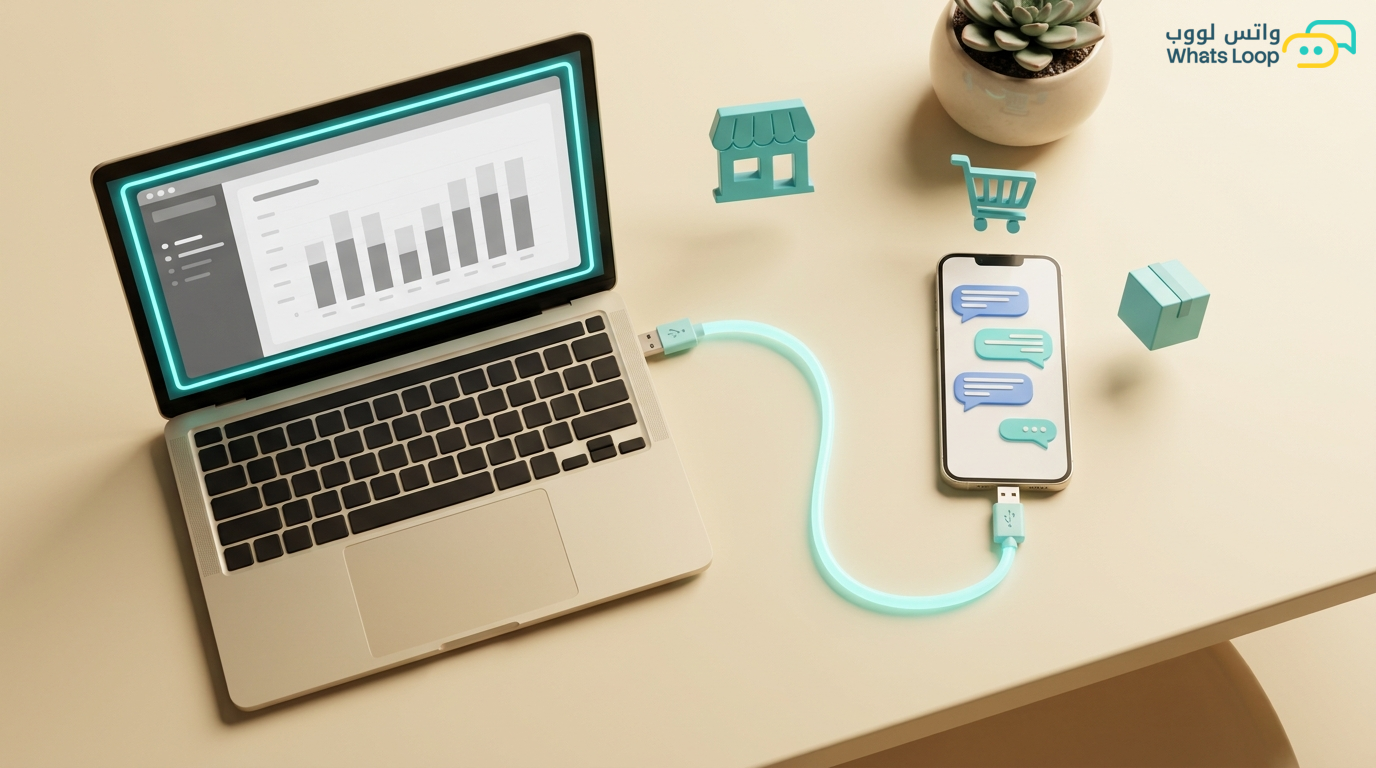
Step 2: Connect Zid to WhatsLoop via API
From the WhatsLoop dashboard:
- Navigate to Integrations and select Zid
- Enter the API Key from your Zid account (find it in: Store Settings > Integrations > API Key)
- Click Connect and wait for confirmation
- Select the events you want WhatsApp notifications for
Step 3: Configure Order Notifications
Set up automated messages for each order stage:
| Order Stage | Message | Timing |
|---|---|---|
| New order | "Your order #[number] has been received. Thank you!" | Instant |
| Payment confirmed | "Payment confirmed. We are preparing your order" | Instant |
| Shipped | "Your order is on its way! Tracking: [number]" | On status update |
| Delivered | "Your order has arrived! We hope you love it" | Instant |
| Review request | "How was your experience? [link]" | After 48 hours |
Step 4: Enable Abandoned Cart Recovery
This single feature can pay for your entire subscription. Setup:
- Enable "Abandoned Carts" in the integration settings
- Set the wait time, optimal is 1 hour after cart abandonment
- Design the message: customer name + cart products + direct checkout link
- Add an incentive: "Get 10% off if you complete your order within 24 hours"
Average recovery with these settings: a significant portion of abandoned carts.
Step 5: Set Up Marketing Campaigns
With your store connected, you can use Zid data to send targeted campaigns:
- New product campaigns: Notify customers who purchased from a specific category when you add new items
- Repurchase campaigns: A customer bought coffee a month ago? Send "Time to restock your coffee?", high conversion rate
- Exclusive offer campaigns: WhatsApp-only discounts that significantly increase customer loyalty
Tips from Successful Zid Stores
- Speed matters: Stores responding quickly achieve significantly higher sales than those responding after an hour
- Do not over-message: Two marketing messages per week is sufficient. More than that and customers block you
- Use the catalog: Connect Zid products to WhatsApp Catalog and let customers browse from the conversation
- Enable quick replies: Prepare ready responses for the top 20 recurring questions: return policy, delivery areas, payment methods
Enhancing the Post-Sale Experience via WhatsApp
The integration does not stop at the sale, the post-sale experience is what brings customers back:
Smart Review Requests: Instead of sending a generic review link, send a personalized message after delivery: "How was your experience with [product name]?", and present interactive buttons (Excellent / Good / Needs Improvement). A customer who selects "Needs Improvement" is automatically routed to the service team to resolve the issue before it becomes a public negative review.
Complementary Product Notifications: One week after purchase, send the customer a recommendation for complementary products, "Bought a coffee machine? Try our new coffee beans." This approach increases customer lifetime value.
To learn more about e-commerce strategies via WhatsApp, check out the Complete WhatsApp E-Commerce Strategy Guide. If you also have a store on Salla, review the Salla WhatsApp integration Guide, the same principles apply. To explore all available integrations in WhatsLoop with e-commerce platforms, visit the integrations page.
Frequently Asked Questions
Q: Does the integration affect my Zid store performance? A: No, the integration works via API and does not affect your store's speed or performance. The connection between WhatsLoop and Zid operates in the background without any impact on your customers' browsing experience.
Q: Can I send WhatsApp messages to existing Zid customers who have not signed up with me? A: You can only send messages to customers who have consented to receive messages from you. When a customer orders from your store and agrees to the terms, you can send them order notifications and follow-up messages. Marketing messages require explicit customer consent.
Q: Do I need a specific Zid plan to enable the integration? A: The integration works with any Zid plan that supports API access. Contact Zid support to confirm your plan supports API keys.
Q: What should I do if the integration stops suddenly? A: In rare cases, the integration may stop due to an API key change or a Zid platform update. The WhatsLoop dashboard alerts you immediately if there is a connection issue, and you can re-establish the link within minutes.
Start Your Integration Today
Connecting Zid with WhatsApp through WhatsLoop increases your sales, saves your time, and improves your customer experience. Setup takes no more than 30 minutes and requires no developer. Sign up for WhatsLoop and start leveraging WhatsApp for your Zid store today.